Google Maps
The GoogleMap component lets you embed and customize interactive Google Maps into your projects. Under the hood, our component is powered by react‑google‑maps, offering a rich set of customization options—from basic configurations like setting the center and zoom level, to advanced features such as custom markers and info windows.
Important
You will need to obtain a Google Maps API key to use the GoogleMap component on your published site. To get an API key, please follow these instructions.
Anatomy
The Google Maps Library ships a template with a few examples like markers, pins, controls, etc.
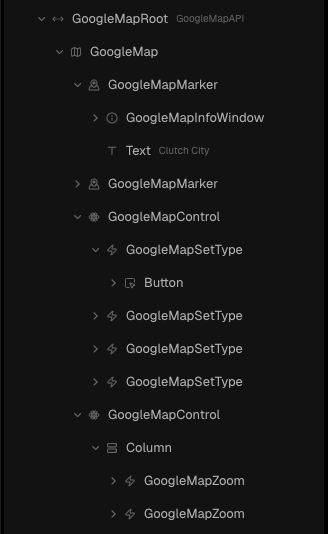
Add a Google Map
Open the Insert Menu (
i) > Components.Drag the GoogleMapRoot onto your page.
Select GoogleMapRoot (GoogleMap API) and add your API key
GoogleMap requires a wrapper with a fixed size
Guides
Here are practical examples of how to use the Google Maps library:
Centering the map
GoogleMap allows you to choose a default position for the map. In this example, we’ll center Houston Zoo.
Get the latitude and longitude of your desired center.
Select GoogleMap and update the defaultCenter property to match the desired position
Right-clicking a spot on Google Maps allows you to copy its coordinates
Adding Markers
You can mark spots that you want to highlight by using Marker, Pin and InfoWindow. In this example, we’ll use the GoogleMapsMarker template that ships with:
GoogleMapsMarker
GoogleMapInfoWindow
GoogleMapPin
Steps
Find GoogleMapMarker from the Google Maps Library and add it onto your GoogleMap
Select the added GoogleMapMarker and configure its latitude and longitude to match the desired position
Properties
GoogleMapAPI
This component should be the root of any Google Map components. It is used to connect to the Google Maps API and the place to set the API key.
GoogleMap
This component is what renders the map.
GoogleMapMarker
This component can be a marker of any kind. The received children will be rendered as the marker on the marker’s position. If no children is passed, it will render a simple Pin as the marker.
This component integrates with GoogleMapInfoWindow. If GoogleMapInfoWindow is used as part of children, it will be controlled by the marker and automatically toggle the open state when the marker is clicked.
GoogleMapPin
This component is used to render a pin inside a marker.
GoogleMapInfoWindow
This component is used to render an info window on the map or on a specific marker. Passed children will be rendered inside the window. This includes useful links, opening times of your business, etc.
If it is placed inside a GoogleMapMarker, it will be anchored to the marker and open/close when the marker is clicked.
Still need help? Ask the team