Form
The Form components include input fields, built-in validation, error handling, and submission actions.
Anatomy
Form
Properties
Actions
FormField
Adding a Form
To add a Form to your page:
Open the Insert Menu and navigate to Components.
Drag and drop the desired Form template onto your page.
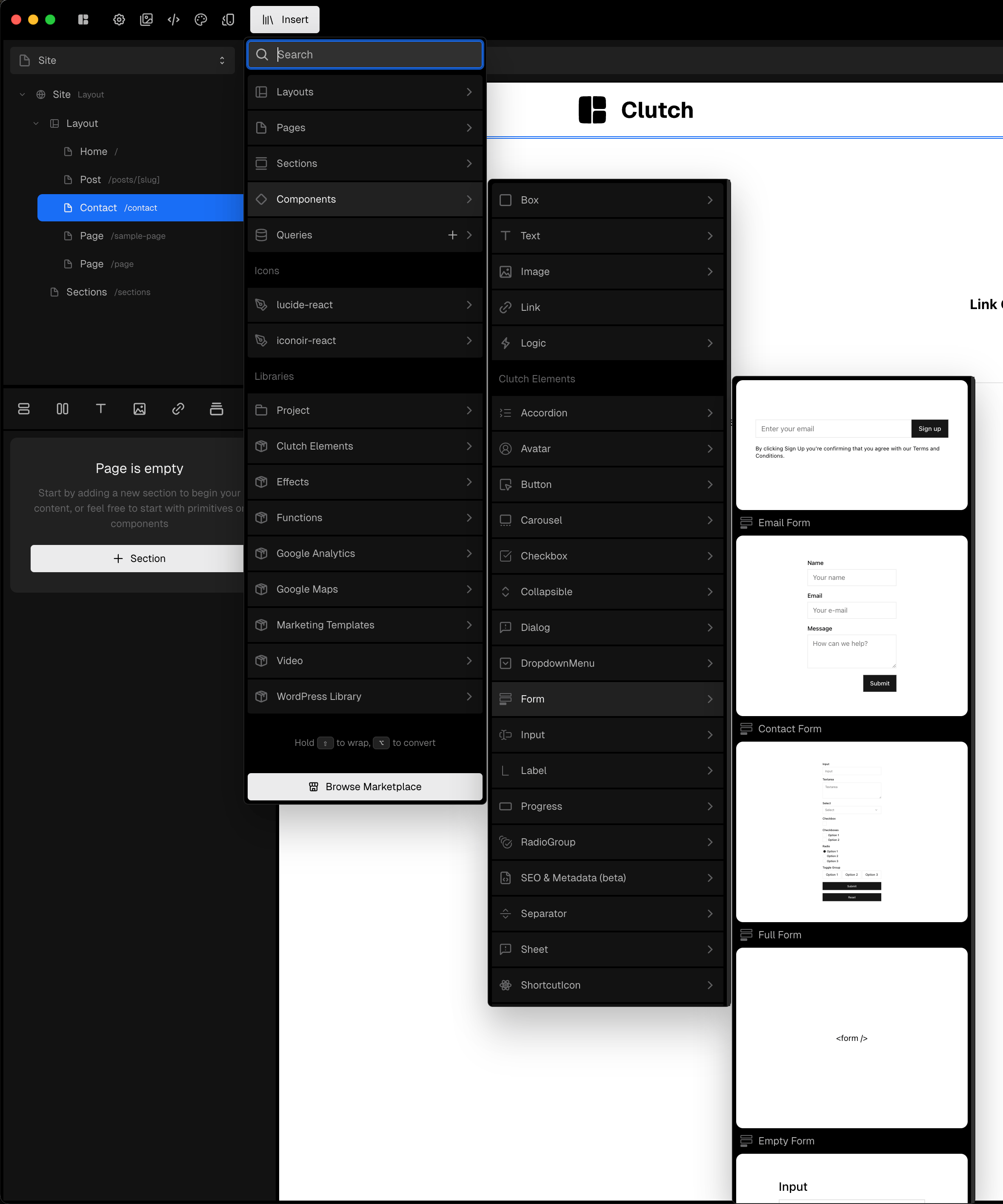
Templates
Email Form
This template includes a simple email field & submit button. It ships with a placeholder, email validation and a REST POST action to get you started.
Contact Form
The contact form template comes with a common set of fields used in Contact Forms. It ships with a default validation method and an example REST POST action.
Full Form
The Full Form template provides an example with most existing input types. It doesn’t ship with validation and is mostly intended to serve as reference of what’s available to copy/paste.
Validation
Each FormField contains validation properties that you can configure to match your needs. These fields are validated on the client side. Please ensure your services contain their own validations or use Server Action Validation.
💡 The team is working on ways to allow more advanced customization. Reach out on Discord if this is important to you, we might bump its priority!
Server action validation & Error Handling
Validations done on actions will also work with our form components. For that to happen, the return values of actions need to follow a few rules. On the returned object:
Specific field errors should be returned on an
errorsfield array. The FormFields will render each error message.export async function myAction(email: string) { if(!email) { return { errors: [ {field: 'email', message: 'Email is required' } ] } }
General errors should be returned on an
errorproperty. The error message will be returned under the FormError componentexport async function myAction(email: string) { if(!email) { return { error: 'Could not submit form' } } }For a success response,
successMessageshould be used. It will be displayed on the FormSuccessMessage componentexport async function myAction(email: string) { return { successMessage: 'Submitted!' }; }
Guides
Form submission POST
Insert the Contact Form template under Components > Form on the Insert library
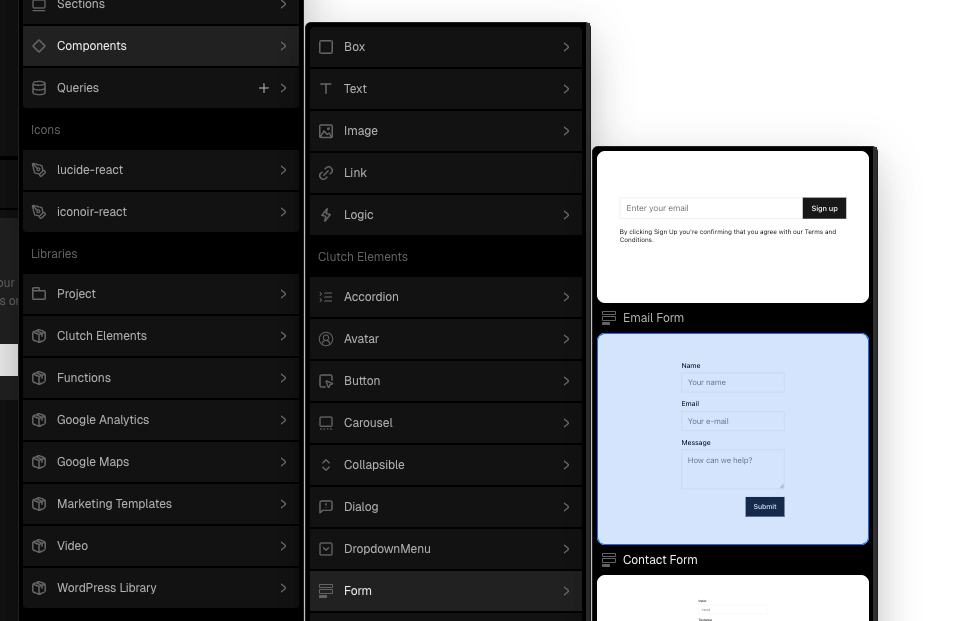
Select the Contact Form that was just added
Update the REST action
urlto match the service URL and bindbodyto your form.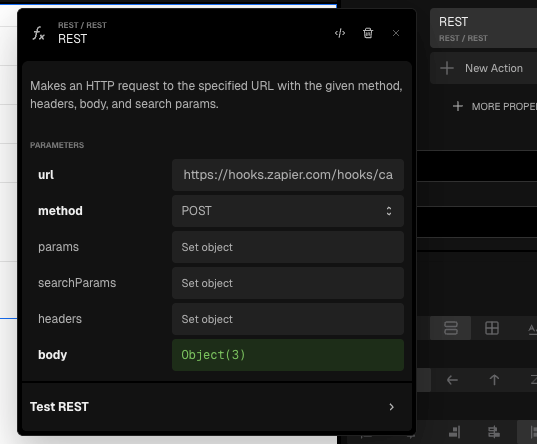
Redirect to new page
Whether you want to redirect after the submission is done or want the form to simply redirect to a different page, redirecting to a different page and/or setting parameters based on the form submission, the navigate action has got you covered.
Starting from your preferred template or already existing form:
Select the
Formon your compositionClick “New Action” and select
navigate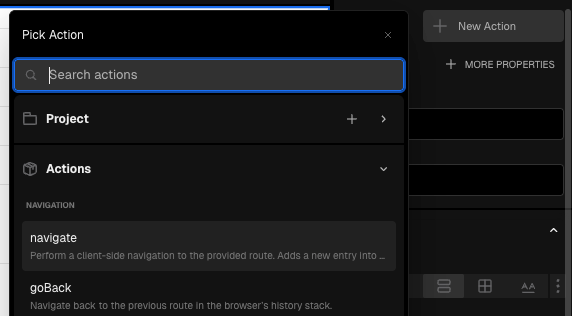
Choose the desired URL
If applicable, add Query Parameters and bind the values to form fields
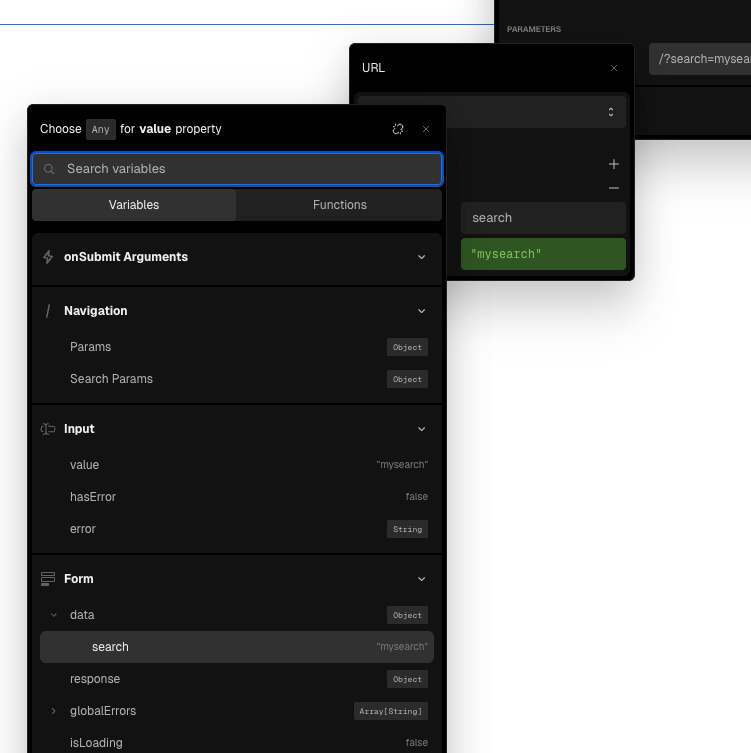
The Input Field name property is used to display and connect the data
Submit form on change
Starting from your preferred template or already existing form:
Select the
Formon your compositionClick “More Properties” to see the additional properties
Add
submitOnChangeand set it to true
Form validation
Starting from your preferred template or already existing form:
Find the field that requires validation and select its
FormField. We’re editing the Contact Formnamein this example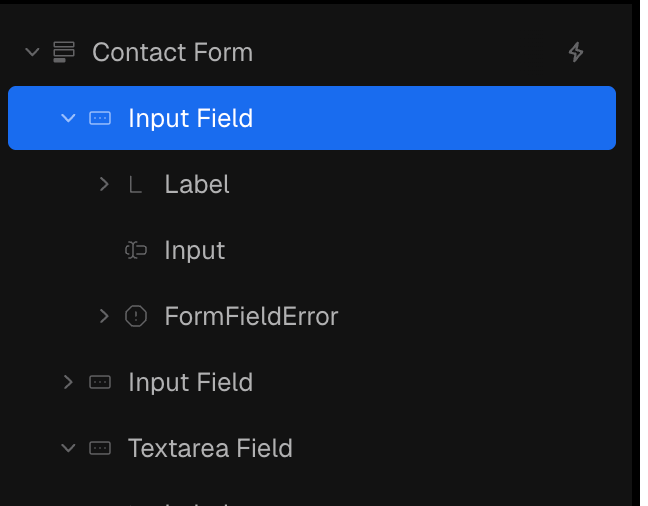
Under “More Properties”, add the validations your input requires. We’re adding
required,minLengthandmaxLengthin our exampleUpdate required to true and set
minLengthandmaxLengthprops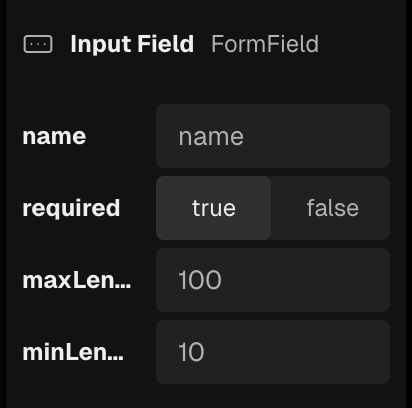
Disabling Submit button
Starting from your preferred template or already existing form:
Select the
ButtoninsideFormSubmiton your composition
Find the
disabledproperty, or click “More Properties” and adddisabledif it doesn’t exist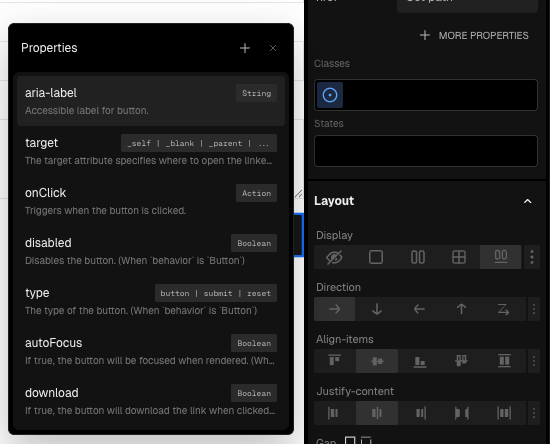
Bind the property to the desired condition.
A common scenario is to disable the Submit button until any change was made on the form. To do so:
Start by binding
disabledto the FunctionisFalsy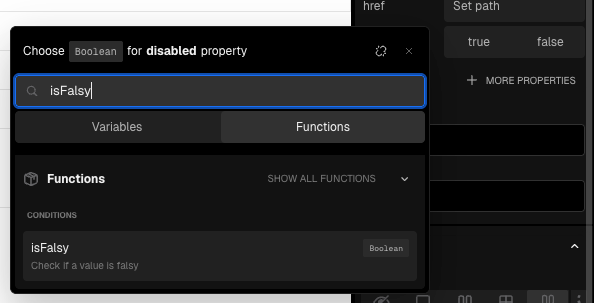
Then bind isFalsy
valueargument toisDirty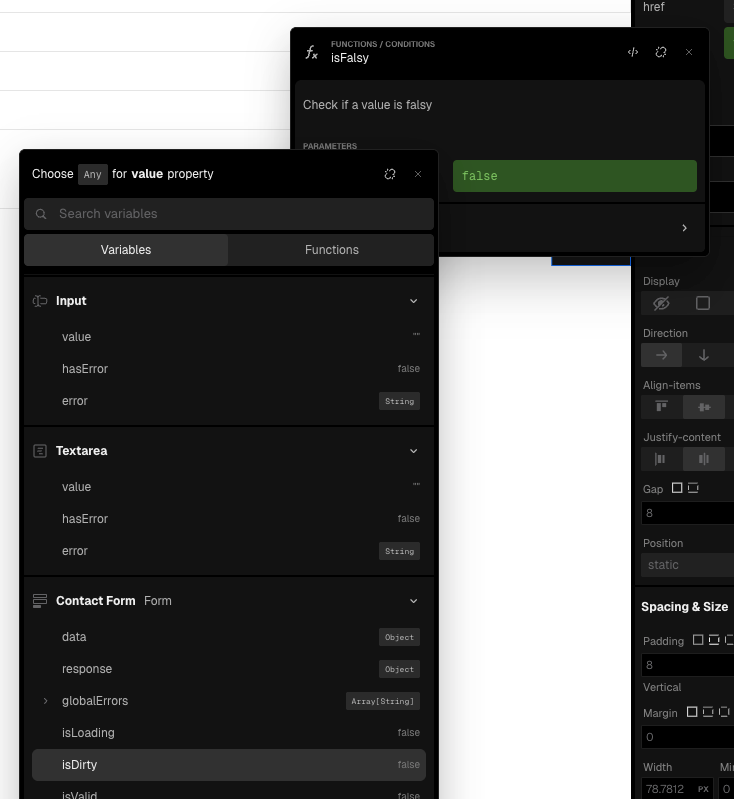
Custom Code Form handler
Starting from your preferred template or already existing form:
Select the
Formon your compositionCreate a new action file or pick an existing one
Write the desired server action
Example action that validates the fields using zod, calls an API and redirects or responds with success
Example action that validates the fields using zod, calls an API and redirects or responds with success
import z from 'zod';
import { redirect } from 'next/navigation';

const zodContactFormSchema = z.object({
  name: z.string().min(4, 'Must have at least 4 character'),
  email: z.string().email('Invalid email address'),
  message: z.string().min(10, 'Must have at least 10 characters'),
});

export async function sendEmailAndRedirect(
  formData: {
    name: string;
    email: string;
    message: string;
  },
  shouldRedirect: boolean,
): Promise<any> {
  const validatedFields = zodContactFormSchema.safeParse(formData);

  if (validatedFields.error.errors) {
    return { errors: validatedFields.error.errors };
  }

  if (!validatedFields.success) {
    return { errors: 'Invalid fields.' };
  }

  const { name, email, message } = validatedFields.data;

  const emailResponse = await fetch('https://api.emailit.io/send', {
    method: 'POST',
    body: JSON.stringify({ name, email, message }),
  });

  if (!emailResponse.ok) {
    return { errors: 'Failed to send email.' };
  }

  if (shouldRedirect) {
    redirect('/thank-you');
  }

  return { successMessage: 'Email sent' };
}
Extending and customizing form templates
You can extend the existing Form templates or build your own using the given Form components. To achieve your desired Form, you’ll need:
A Form component at the root of your form
As many Form Fields as you require. It is extremely important to name them
One or more actions on the form
A FormSubmit, unless the Form
submitOnChangeproperty istrue
Although optional, you should also add:
ErrorMessage to display submission errors
FormSuccess to signalize the form was submitted
FormReset to reset the form state
Still need help? Ask the team